Showing posts with label Microsoft Office Tips amp; Techniques. Show all posts

Wednesday, November 25, 2009

You can organise a meeting in Microsoft Outlook using the following methods:

Method 1
  1. Go to your Calendar, display the date when you would like to hold the meeting, and click on your preferred time slot. (You could just double click the time for your meeting on the Calendar)

  2. Click the Plan a Meeting icon , (on the Advanced toolbar, if the toolbar is not on display, right click on any empty space around or below the menu bar, and click advance ), or Actions > Plan a Meeting.

  3. Click on Add Others to add email addresses and names of participants from your address book.

  4. Click on Make Meeting (this action displays a new window containing subject, location, and text area for more information)

  5. Type the subject of the meeting and the details including location.

  6. Click on Send
With this option, you don't need to select the date of the meeting.

Method 2
  1. From your Inbox, select the drop down beside the ‘New’ option on the standard toolbar, select Meeting Request or File > New > Meeting Request. This action opens a new meeting window.

  2. Click on the ‘To’ field to add your invitees. When you are done selecting contacts, click on OK (note that the addresses selected are added to the text area beside the ‘To’ field.

  3. Type your subject, location, choose a date and the start and end time for your meeting.

  4. Type further meeting details in the box provided.

  5. Click on Send

Responding to a Meeting request
When you receive a request to attend a meeting, you will see it in your Inbox with a different icon - meeting request icon.


To send the organizer a response if you will be attending is pretty easy.

  1. Open the request, and select one of the meeting responses:

  2. When you select any of these you then have the option to:

    1. Edit the response before sending – e.g. if the date is not convenient you could suggest an alternative.

    2. Send the response now – the person arranging the meeting will be notified of your response.

    3. Don’t send a response
If the organizer cancels the meeting, Outlook would automatically send a mail to all recipients with a subject indicating meeting cancellation. Outlook would also delete the entry from your calendar.

One thing we all need to be aware of is that, we won't optimize the tools in Outlook if it is not used as a desktop organizer.
Tuesday, November 3, 2009

1.  Using CTRL 1 to format cells in MS Excel: To open the format cell dialog box in MS Excel – use CTRL + 1 – this option makes my life easier when I’m working with Excel – As soon as I select the area to be formatted with the mouse using my right hand, I press CTRL 1 on the keyboard with the left (this is easy because the two buttons (CTRL and 1) are on the left side of the keyboard).

2.  Organize your MS Excel Workbook – I like to name my worksheets, especially when working with big projects. To change the default sheet name, double click on the name (i.e. Sheet1), when it’s selected, type the new name.

3.  Using names rather than default cell positions (i.e. Revenue instead of D20) when working with complex tables. This is useful when you are dealing with a large audience because your names tell your viewers the purpose of your formula or a particular cell.

To name a cell, select the cell or range of cell > click on Insert menu > click on Name > click on Define to add a name.

Please note that defined names can be used on any worksheet.

4.  Creating a quick chart in Excel – To create a chart quickly in Excel using default settings, select your data range > then press F11.

Monday, October 19, 2009

1. Convert Text to Table in MS Word – Assuming you had some bulleted texts with the words separated with commas on each line, e.g

Seun, Tolade, July 21
Dotun, Daniel, July 16
Coleman, King, July 7
Joseph, Aparati, March 26
James, Talmond, October 7

To convert the following series of text to table: select the entire text > click on table on the Menu bar: select ConvertText to Table (see result below).

SeunToladeJuly 21
DotunDanielJuly 16
ColemanKingJuly 7
JosephAparatiMarch 26
JamesTalmondOctober 7

2.  Performing calculations in MS Word: Assuming you had a table in Word with figures, you do not need to go to MS Excel to perform simple calculations or even apparently difficult ones. Amazingly, the way you type your formula syntax is the same in Word and Excel.

To work with formulas, click on the Table menu; select Formulas and there you go!

Ayo50
Dan75
Chid81
206

3. In the same vein, you can create Charts in MS Word

Select your data; click on InsertPictureChart

You have all charts classification as in Excel.

4.  AutoCorrect: If there is a word / sentence you use often, and you don’t want to go through the pain of retyping the text whenever you need it, let’s say your initials to be replaced with your name, you can add it to your AutoComplete selection.

To do that, go to Insert menu; AutoTextAutoTextType your entry in the space provided > click on Add button.

Next time you start typing the word, MS word gives you the option to automatically complete the entry. Simply press the Enter key or F3 on the keyboard.

Friday, October 16, 2009

An Easy Way to Print Envelopes in MS Word

Printing envelopes can be pretty easy in MS Word. I imagine that you would find this tip useful when you don’t have your addresses typed into MS Word /Address Book or when you are just creating single envelopes (for mass mailing, it is advisable to use mail merge – this would be discussed in my future posts). Printing addresses on envelopes gives that professional touch to your work and ensures that you don’t waste your ‘limited’ time writing delivery addresses.

Here’s how to print Envelopes in MS Word.

I assume that MS Word is already opened.

Step 1: Go to Tools on the main menu > Letters and Mailing > Envelopes and Labels

(this action opens the Envelopes and Labels dialog box)


WINDOWS SHORTCUT KEY is ALT + T + E + E (the Windows shortcut still works for Office 2003 and newer versions)

Step 2:

If the focus is not on the Envelopes tab, click the Envelopes tab

(Please note, the dialog box has two tabs, one for envelopes and the other for labels. By default, the Envelopes tab is active when you open the dialog box)


Step 3:

Type your address in the text box beneath ‘Delivery Address’

(If you already have your address in a document, you could just select the address before opening the dialog box, this action automatically includes the selected address in the text box)


Step 4a:

If your printing and envelopes options are correct, click on Print to print your address on the envelopes.


Step 4b:

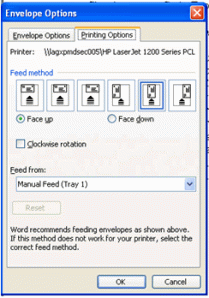
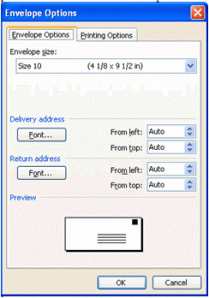
If your printing and envelopes options are wrong, click on Options.(This opens the Options dialog box. The dialog box has two tabs, one for Envelopes Options and the other for Printing Options – See diagram below)


envelopes-Penvelopes-E


Step 5:

On the Envelopes Options select the appropriate Envelope size; accept the default settings for the Delivery and Return Address.


Step 6:

Click the Printing Options tab, select the appropriate Feed method (the way the envelope is placed in the printer);


Step 7:

Click Ok to exit the Options dialog box


Step 8:

Click on Print on the Envelopes and Labels dialog box.


Subscribe to RSS Feed Follow me on Twitter!