Showing posts with label Technology amp; Design. Show all posts

Saturday, August 13, 2011

This week has been mixed with peaks and valleys, the post is a recap of selected happenings around the world.

  • US STRIPPED OF ITS AAA CREDIT RATING:

"John Santiago works on the floor of the New York Stock Exchange Friday, Aug. 12, 2011. (AP Photo/Richard Drew) Photo: AP"]

The US was stripped of its AAA credit rating by S & P. Following the downgrade, the US stock market which has witnessed continuous plunge since late July 2011 got its worst hit on Monday August 8th - the S&P index plunged by 6.7 percent in the first trading session (the biggest slump since December 2008). In response to the downgrade, the Federal Reserve said "it will leave benchmark interest rate at a record low through mid 2013. Amidst uncertainty and fear and slump in major banks stocks in the US, the stock market remained largely volatile during the week - on this note it was reported that "never before has the S & P 500 index reversed moves that large each day over four sessions."  Read more here & here.

CENTRAL BANK OF NIGERIA NATIONALISE 3 BANKS: The Central Bank of Nigeria issued a press statement stating it's support for NDIC's (Nigeria Deposit Insurance Corporation) resolution to recapitalise Spring Bank Plc, Bank PHB Plc and Afribank Nigeria through Bridge Banks namely Enterprise Bank Limited, Keystone Bank Limited and Mainstreet Bank Limited respectively. In reaction to this move, the Nigerian Stock Exchange (NSE) directed stockbroking firms and dealing members to withdraw their settlement accounts from the three nationalised banks. The move by the CBN also led to stocks value plummeting consecutively for three days. The drop culminated in a N339billion drop in total market capitalization with the banking stocks losing 9.2 percent of total value in three days. Read more here.

SAM LOCO PASSES ON:

Sam Loco

Veteran actor & comedian Sam Loco passed on, you can read more here. May his soul rest in peace.

GOVERNOR FASHOLA SIGNS LAW AGAINST ABANDONMENT OF PREGNANT WOMEN:

A pregnant woman"

Governor Fashola signs law against abandonment of pregnant women. Read more here. It is now illegal in Lagos State for any man to impregnate and desert a woman.

JAPAN CUTS GROWTH FORECAST TO 0.5%: To reflect the slump in output following the March earthquake, Japan cuts its economic growth forecast for 2011 to 0.5% from 1.5%. Watch Video here.

MASS UPRISING IN LONDON:

"A woman leaps from a burning building in Surrey Street, Croydon into the arms of police officers. The town was hit by rioting and a huge fire"London Riot

Civil unrest /riots in London by citizens who are perhaps discontent with simmering poverty and neglect in the city, according to a report, Martin Fletcher says "caught in a poverty and joblessness cycle, young people in many British urban areas have little hope of a better life." The killing of a 29 year old father, Mark Dugan, heightened the spark for an uprising whose time had come.. you can get the scoop here and more here.

THE WEB (WWW) TURNS 20


On August 6th, 1991, Tim Berners-Lee, a British physicist at the European Organisation for Nuclear Research (CERN), in Geneva, created the first-ever web page—a summary of his WWW project along with explanations to help visitors build websites of their own and to search the web for information... today, the rest is Web History. It has dramatically changed the way we do things. Read more here.

INSPIRING STORY: THE BOY WITH THE BACKWARD LEG

A turned around leg, and still cheerful..Dugan Smith

A 10 year old boy, Dugan Smith, diagnosed with cancer had his leg amputated at 11. He went through an unusual surgical procedure that allowed him to keep the remainder of his leg, but reattached backward - that way the cancer is cut out, but the nerve that controls the foot is intact by turning it around backward. According to the report, Dugan's calf now acts as his thigh, his ankle acts as his knee and his foot acts as his shin bone. He also uses a prosthetic ankle and foot.

For Dugan, now 13, despite a slight limp and some lingering troubles with running, he is not giving up, he says "Never give up, because 90 percent of it is in your mind. Read the full story here.

We would love to hear from you, share your thoughts, your stories just in case we missed it.
INSPIRING STORY: THE BOY WITH THE BACKWARD LEG

A turned around leg, and still cheerful..."Dugan Smith

A 10 year old boy, Dugan Smith, diagnosed with cancer had his leg amputated at 11. He went through an unusual surgical procedure that allowed him to keep the remainder of his leg, but reattached backward - that way the cancer is cut out, but the nerve that controls the foot is intact by turning it around backward. According to the report, Dugan's calf now acts as his thigh, his ankle acts as his knee and his foot acts as his shin bone. He also uses a prosthetic ankle and foot.

For Dugan, now 13, despite a slight limp and some lingering troubles with running, he is not giving up, he says "Never give up, because 90 percent of it is in your mind. Read the full story here.
THE WEB (WWW) TURNS 20

[caption id="" align="alignnone" width="416" caption="The Web turns 20"][/caption]

On August 6th, 1991, Tim Berners-Lee, a British physicist at the European Organisation for Nuclear Research (CERN), in Geneva, created the first-ever web page—a summary of his WWW project along with explanations to help visitors build websites of their own and to search the web for information... today, the rest is Web History. It has dramatically changed the way we do things. Read more here. and here for timeline.

Thursday, July 15, 2010


Many of us are familiar with file extensions with ".pdf" (Portable Document Formats), a file format created by Adobe Systems in 1993 for document exchange.

When you convert your documents to PDF, it means your text, design and formatting stay intact. You are able to quickly share the documents with friends, family, and colleagues. What could be more interesting, your viewers don't have to worry about installing specific applications before they can view your file.

And so everyone loved PDF, it became the buzz word; it was the order of the day and the today still the global most loved format for exchanging documents across multiple platforms.

What is more interesting today is that, Adobe Reader has been extended to include more powerful features but now under the Acrobat family.

The designers were quick to differentiate between Adobe Reader and the Adobe Acrobat family (Adobe Acrobat Professional, Standard and Pro Extended).

Adobe Reader is free and it’s simply just your document reader – it is the software to view, print and collaborate on PDF files. But Adobe Acrobat Professional or the Standard version gives you more flexibility and control over your content.  Read more on the difference here.

Here are some of its features.

  • Easily convert your files (any form of content – images, word documents, Excel spreadsheets etc) to PDF from within the Acrobat Professional/Standard window and also combine existing PDF documents.

  • You are able to protect documents easily with the enhanced security features.

  • You can easily create, customize dynamic electronic forms, automate the forms and distribute them to the recipients.

  • Quickly Integrate content, insert logos and define navigation.

  • Edit existing PDF files and quickly save edited versions.

In short the Acrobat Professional/Standard enables you to deliver dynamic PDF content. It’s simply an extraordinary solution to common problems.

I have been using it for about 2 years and it has really eased my processes and work-flow. And guess what, I’m still loving it.

Click here for more information.

Tuesday, December 22, 2009

Some Keyboard shortcuts that you may find useful in Windows environment.

THE WINDOWS KEY
Windows key (or Ctrl Esc)Opens the start menu (same as clicking the start menu)
Windows + EOpens My Computer (saves you time and the sometimes the stress of holding the mouse while you are typing on the keyboard)
Windows + FOpens the Search Window (this is surely fast)
Windows + Pause/BreakOpens the system properties window (useful when you want to stop an unresponsive application)
Windows + DShows the desktop (very useful when you have several applications opened)
NAVIGATION BASICS
The Arrow KeysTo move between items in the active area
Tab KeyTo move between fields or controls
Alt + TabTo move between active applications
Shit + TabTo move backwards through tabs
Ctrl + TabTo move forward through tabs
OTHER USEFUL CONTROLS
Alt + F4Closes an active applicationOpen the shutdown window dialog box when know application is running or active
Ctrl + F4Closes the active document but not the application.
Alt + DMoves the focus to the address bar. This works in Windows Explorer and your Web Browsers

Wednesday, November 25, 2009

You can organise a meeting in Microsoft Outlook using the following methods:

Method 1
  1. Go to your Calendar, display the date when you would like to hold the meeting, and click on your preferred time slot. (You could just double click the time for your meeting on the Calendar)

  2. Click the Plan a Meeting icon , (on the Advanced toolbar, if the toolbar is not on display, right click on any empty space around or below the menu bar, and click advance ), or Actions > Plan a Meeting.

  3. Click on Add Others to add email addresses and names of participants from your address book.

  4. Click on Make Meeting (this action displays a new window containing subject, location, and text area for more information)

  5. Type the subject of the meeting and the details including location.

  6. Click on Send
With this option, you don't need to select the date of the meeting.

Method 2
  1. From your Inbox, select the drop down beside the ‘New’ option on the standard toolbar, select Meeting Request or File > New > Meeting Request. This action opens a new meeting window.

  2. Click on the ‘To’ field to add your invitees. When you are done selecting contacts, click on OK (note that the addresses selected are added to the text area beside the ‘To’ field.

  3. Type your subject, location, choose a date and the start and end time for your meeting.

  4. Type further meeting details in the box provided.

  5. Click on Send

Responding to a Meeting request
When you receive a request to attend a meeting, you will see it in your Inbox with a different icon - meeting request icon.


To send the organizer a response if you will be attending is pretty easy.

  1. Open the request, and select one of the meeting responses:

  2. When you select any of these you then have the option to:

    1. Edit the response before sending – e.g. if the date is not convenient you could suggest an alternative.

    2. Send the response now – the person arranging the meeting will be notified of your response.

    3. Don’t send a response
If the organizer cancels the meeting, Outlook would automatically send a mail to all recipients with a subject indicating meeting cancellation. Outlook would also delete the entry from your calendar.

One thing we all need to be aware of is that, we won't optimize the tools in Outlook if it is not used as a desktop organizer.

Tuesday, November 3, 2009

1.  Using CTRL 1 to format cells in MS Excel: To open the format cell dialog box in MS Excel – use CTRL + 1 – this option makes my life easier when I’m working with Excel – As soon as I select the area to be formatted with the mouse using my right hand, I press CTRL 1 on the keyboard with the left (this is easy because the two buttons (CTRL and 1) are on the left side of the keyboard).

2.  Organize your MS Excel Workbook – I like to name my worksheets, especially when working with big projects. To change the default sheet name, double click on the name (i.e. Sheet1), when it’s selected, type the new name.

3.  Using names rather than default cell positions (i.e. Revenue instead of D20) when working with complex tables. This is useful when you are dealing with a large audience because your names tell your viewers the purpose of your formula or a particular cell.

To name a cell, select the cell or range of cell > click on Insert menu > click on Name > click on Define to add a name.

Please note that defined names can be used on any worksheet.

4.  Creating a quick chart in Excel – To create a chart quickly in Excel using default settings, select your data range > then press F11.

Monday, October 19, 2009

1. Convert Text to Table in MS Word – Assuming you had some bulleted texts with the words separated with commas on each line, e.g

Seun, Tolade, July 21
Dotun, Daniel, July 16
Coleman, King, July 7
Joseph, Aparati, March 26
James, Talmond, October 7

To convert the following series of text to table: select the entire text > click on table on the Menu bar: select ConvertText to Table (see result below).

SeunToladeJuly 21
DotunDanielJuly 16
ColemanKingJuly 7
JosephAparatiMarch 26
JamesTalmondOctober 7

2.  Performing calculations in MS Word: Assuming you had a table in Word with figures, you do not need to go to MS Excel to perform simple calculations or even apparently difficult ones. Amazingly, the way you type your formula syntax is the same in Word and Excel.

To work with formulas, click on the Table menu; select Formulas and there you go!

Ayo50
Dan75
Chid81
206

3. In the same vein, you can create Charts in MS Word

Select your data; click on InsertPictureChart

You have all charts classification as in Excel.

4.  AutoCorrect: If there is a word / sentence you use often, and you don’t want to go through the pain of retyping the text whenever you need it, let’s say your initials to be replaced with your name, you can add it to your AutoComplete selection.

To do that, go to Insert menu; AutoTextAutoTextType your entry in the space provided > click on Add button.

Next time you start typing the word, MS word gives you the option to automatically complete the entry. Simply press the Enter key or F3 on the keyboard.

Friday, October 16, 2009

An Easy Way to Print Envelopes in MS Word

Printing envelopes can be pretty easy in MS Word. I imagine that you would find this tip useful when you don’t have your addresses typed into MS Word /Address Book or when you are just creating single envelopes (for mass mailing, it is advisable to use mail merge – this would be discussed in my future posts). Printing addresses on envelopes gives that professional touch to your work and ensures that you don’t waste your ‘limited’ time writing delivery addresses.

Here’s how to print Envelopes in MS Word.

I assume that MS Word is already opened.

Step 1: Go to Tools on the main menu > Letters and Mailing > Envelopes and Labels

(this action opens the Envelopes and Labels dialog box)


WINDOWS SHORTCUT KEY is ALT + T + E + E (the Windows shortcut still works for Office 2003 and newer versions)

Step 2:

If the focus is not on the Envelopes tab, click the Envelopes tab

(Please note, the dialog box has two tabs, one for envelopes and the other for labels. By default, the Envelopes tab is active when you open the dialog box)


Step 3:

Type your address in the text box beneath ‘Delivery Address’

(If you already have your address in a document, you could just select the address before opening the dialog box, this action automatically includes the selected address in the text box)


Step 4a:

If your printing and envelopes options are correct, click on Print to print your address on the envelopes.


Step 4b:

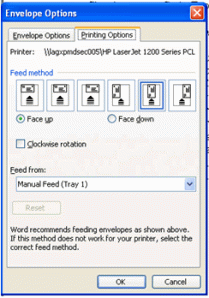
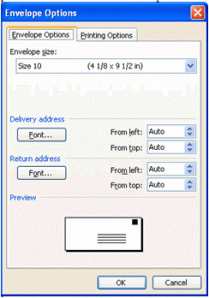
If your printing and envelopes options are wrong, click on Options.(This opens the Options dialog box. The dialog box has two tabs, one for Envelopes Options and the other for Printing Options – See diagram below)


envelopes-Penvelopes-E


Step 5:

On the Envelopes Options select the appropriate Envelope size; accept the default settings for the Delivery and Return Address.


Step 6:

Click the Printing Options tab, select the appropriate Feed method (the way the envelope is placed in the printer);


Step 7:

Click Ok to exit the Options dialog box


Step 8:

Click on Print on the Envelopes and Labels dialog box.


Wednesday, October 7, 2009

If you work in a corporate environment, then you probably have used any of the Standard Microsoft Office applications – MS Word, Excel, PowerPoint or Outlook. Despite the ready availability and popularity of this group of applications, I am not sure we utilize up to 50% of its capabilities which are meant to simplify business processes.

MS Office tips and tricks would be providing you with ways and techniques to improve your knowledge of Office applications from write-ups on the fundamental tools to postings on how to complete seemingly difficult tasks. The goal is to ensure that you maximize the potentials that the application has to offer thereby leading to efficient and improved performance.

I hope you find this beneficial.

So here is the first edition of the tip & technique.

Enjoy.


Microsoft Office Basic Shared Features


Quick Introduction: What is Microsoft Office? (Most of us may be familiar with this already).

I would say it’s a suite comprising of a word processor (MS Word), a spreadsheet application (MS Excel), an E-mail client (MS Outlook ), a presentation application (MS PowerPoint) and in some fuller / professional versions – you could have a database management application (MS Access), MS OneNote, MS Visio, MS FrontPage, MS InfoPath, MS Publisher and others.

Things to note:

  • The programs are all desktop applications which can be used on Windows and Mac OS X platforms.

  • The software is designed to aid administrative, communication and other business processes and generally make your life easier and improve your day- to-day functionality.

  • All the applications within the suite are interrelated and have many shared features (you would learn more on this in future posts) – the focus of the current post is on some the basic shared feature.

  • Understanding the basic/shared features in, for example, MS Word means you would not need to go through the learning process in MS Excel.

Basic Shared Bars

BarDescription
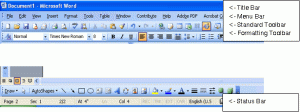
Title BarNames the application
Menu BarThis is the second bar after the Title bar – it contains File, Edit, View, Format, Tools, Table, Window and Help Menus. The Menu Bar is like the powerhouse. Everything you need to get around any Office application is contained in the Menu
Standard Tool Barshows all icons and shortcuts to frequently used menu commands such as file operations (New, Open, Save), Undo, Redo, Copy, Cut & Paste, View etc
Formatting Tool BarShows all the icons you need for basic formatting from Font type, Size, Alignment, tabs, bullets and numbering, borders and shading. The formatting toolbar can be of great help because it makes all your formatting needs just a click away.Formatting toolbar vary depending on the application
Task PaneAlways on the right hand side. Commonly and frequently used features are grouped on the task-pane for convenience. The item on the task changes in line with current action.
Status BarDisplays page number / slide number and other document / presentation / worksheet properties.

Note: Pointing the cursor on any toolbar icon displays the name of the icon – this is true for all MS Office applications and some other Graphic User Interface such as Windows/Mac OS X based applications.

Figure 1

MS Office Basic Shared Bars

Basic Shared Controls / Short cuts (more on specific controls / shortcuts in future posts)


CommandDescription
F1Help menu (this control also initiates the Help Menu in Windows).
F12‘Save As’ or ALT F A (does not work in Outlook).
Ctrl PPrint
Ctrl C, X and VCopy, Cut and Paste.
Ctrl NCreates a new blank document/workbook/presentation etc.
Ctrl OOpens a document.
Ctrl Y & ZUndo and Redo
Ctrl F4 or Ctrl WCloses current document/spreadsheet/presentation etc
Ctrl HomeNavigates to the beginning of the page.
Ctrl EndNavigates to the end of the page
Alt F4Closes application i.e. MS Word, PowerPoint, Excel.
Ctrl B, U, & IBold, Underline & Italicize.
F7Runs spelling and grammar check.
Shift F7Runs the thesaurus.
Ctrl ASelects All

Please note: the list is not exclusive and this post was written with MS Office 2003 in mind. MSOffice 2007 is different with regards to the standard and formatting toolbars (they have been replaced with the ‘ribbon’) and looks really complex at a glance. By the way, the release of MS Office 2010 was announced by Microsoft Corporation in July 2009 with better functionality and improved user experience.
Subscribe to RSS Feed Follow me on Twitter!